How to Reset Shark Robot Vacuum: Complete Step-by-Step Guide for Every Model
If your Shark robot vacuum is not connecting to WiFi, refusing to start, getting stuck during cleaning, showing error lights, or behaving unexpectedly, a reset can often solve the problem. Many Shark robot owners face these issues after software updates, network changes, or long-term use.
Learning how to reset Shark robot vacuum devices correctly can save time, prevent unnecessary troubleshooting, and help restore normal operation. Whether you need a simple reboot, a WiFi reset, or a full factory reset, understanding the right method for your model is important.
This complete guide explains everything you need to know about how to reset Shark robot vacuum models. You will learn how to perform basic resets, factory resets, WiFi resets, and app-free reset methods. The instructions are easy to follow and suitable for beginners.
By the end of this guide, you will know exactly how to reset a Shark robot vacuum safely and effectively.
Why You May Need to Reset Your Shark Robot Vacuum
A reset can solve many common Shark robot vacuum problems.
Some of the most common reasons include:
- The vacuum is not responding.
- The robot is stuck in a startup loop.
- WiFi connection keeps disconnecting.
- The Shark Clean app cannot detect the vacuum.
- Mapping issues occur repeatedly.
- The vacuum stops cleaning unexpectedly.
- Error lights continue flashing.
- You are selling or giving away the vacuum.
- You moved to a new home and need a new WiFi connection.
- Software glitches are affecting performance.
In many situations, resetting the vacuum is faster than spending hours troubleshooting individual issues.
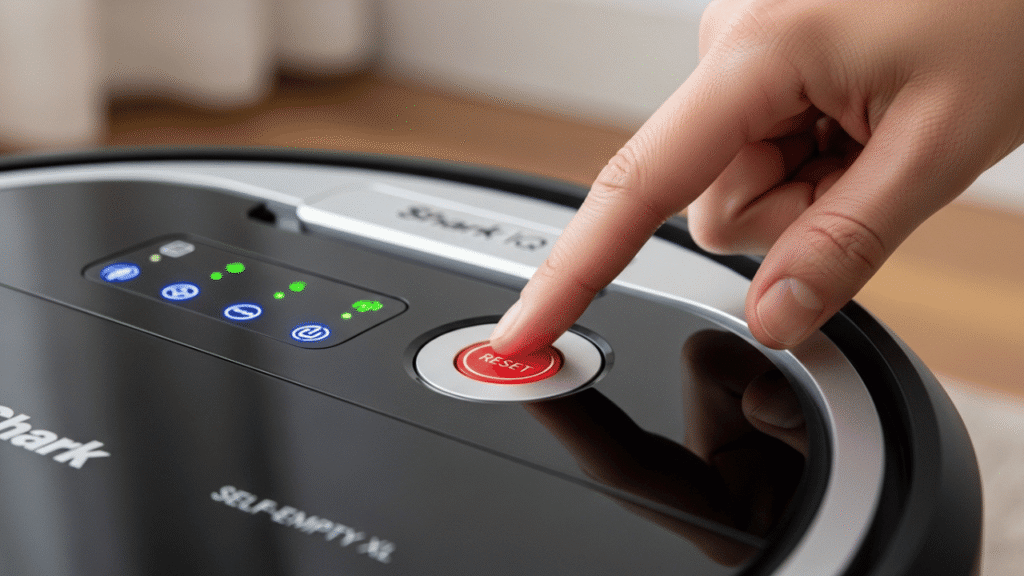
Understanding the Different Types of Shark Robot Vacuum Resets
Before resetting your robot, it is important to understand that there are several types of resets.
Soft Reset
A soft reset simply restarts the robot vacuum without deleting any settings.
This is useful for:
- Minor software glitches
- Frozen controls
- Temporary connectivity issues
WiFi Reset
A WiFi reset removes the current network settings so you can connect the robot to a new wireless network.
This is useful when:
- Changing internet providers
- Replacing a router
- Updating WiFi passwords
- Moving to a new home
Factory Reset
A factory reset returns the vacuum to its original settings.
This process usually removes:
- WiFi credentials
- Saved maps
- User preferences
- Connected accounts
Use a factory reset when major issues persist or before transferring ownership.
How to Reset Shark Robot Vacuum With a Simple Restart
A simple restart is often enough to solve minor issues.
Follow these steps:
- Turn off the robot vacuum.
- Locate the power switch on the side or bottom of the unit.
- Switch the vacuum off.
- Wait approximately 10 to 30 seconds.
- Turn the vacuum back on.
- Allow the robot to reboot completely.
Once restarted, test the vacuum to see if the issue has been resolved.
Many Shark owners find that a simple reboot fixes temporary software problems.
How to Reset Shark Robot Vacuum Using the Power Button
Some Shark robot vacuum models allow a quick reset through the onboard controls.
Follow these general steps:
- Place the robot on a flat surface.
- Press and hold the Power button.
- Continue holding for approximately 10 seconds.
- Release the button when the lights blink or the robot restarts.
- Wait for the startup sequence to finish.
The exact timing may vary slightly depending on your Shark model.
Always consult your model’s user manual for model-specific instructions.
How to Reset Shark Robot Vacuum Without App
Many users search for how to reset Shark robot vacuum without app access.
Fortunately, most Shark robot vacuums can be reset manually.
Method 1: Power Cycle Reset
- Turn the robot off.
- Remove it from the charging dock.
- Wait 30 seconds.
- Turn it back on.
- Return it to the dock.
Method 2: Button Reset
- Press and hold the Clean button.
- Hold for approximately 10 to 15 seconds.
- Wait for the indicator lights to flash.
- Release the button.
- Allow the robot to restart.
Method 3: Battery Drain Method
If the vacuum is completely frozen:
- Turn it off.
- Leave it disconnected from the dock.
- Allow the battery to drain completely.
- Recharge fully.
- Restart the robot.
These methods are helpful when the Shark Clean app is unavailable or not functioning correctly.
How to Factory Reset Shark Robot Vacuum
A factory reset restores the robot to its original factory condition.
Factory Reset Through the Shark Clean App
Follow these steps:
- Open the Shark Clean app.
- Select your robot vacuum.
- Open Settings.
- Locate Factory Reset.
- Confirm the reset.
- Wait for the process to finish.
The robot may restart automatically.
Factory Reset Using Physical Buttons
Many Shark robot vacuums support manual factory resets.
General procedure:
- Ensure the robot is powered on.
- Press and hold the Dock and Clean buttons simultaneously.
- Continue holding for about 10 seconds.
- Release when indicator lights flash.
- Wait for the robot to reboot.
Once complete, the vacuum returns to default settings.
What Happens After a Factory Reset?
The following data may be erased:
- WiFi settings
- Cleaning schedules
- Room maps
- User preferences
- Device pairing information
You will need to reconnect the robot as if it were new.
How to Reset WiFi on Shark Robot Vacuum
One of the most common support questions is how to reset WiFi on Shark robot vacuum devices.
A WiFi reset is useful when:
- Router settings changed.
- Network passwords changed.
- Internet service provider changed.
- The robot cannot reconnect automatically.
WiFi Reset Method
- Turn on the robot vacuum.
- Press and hold the Dock and Clean buttons together.
- Hold for approximately 10 seconds.
- Wait until the WiFi light begins blinking.
- Open the Shark Clean app.
- Start the setup process again.
- Connect the robot to your WiFi network.
The blinking WiFi indicator usually means the robot is ready for pairing.
How to Reconnect Shark Robot Vacuum to a New WiFi Network
After completing a WiFi reset, reconnecting is straightforward.
Step 1: Download the Shark Clean App
Install the latest version of the app on your smartphone.
Step 2: Enable Bluetooth and WiFi
Ensure both features are turned on.
Step 3: Put the Robot in Pairing Mode
Most Shark robots enter pairing mode automatically after a WiFi reset.
Step 4: Add New Device
Within the app:
- Tap Add Device
- Select your model
- Follow on-screen instructions
Step 5: Complete Setup
Enter your WiFi credentials and wait for pairing to finish.
Once connected, schedules and settings can be configured again.
How to Reset Shark AI Robot Vacuum
Shark AI Robot Vacuum models may have slightly different procedures.
Common steps include:
- Turn on the robot.
- Press and hold Dock and Clean buttons.
- Hold for approximately 10 to 15 seconds.
- Wait for light indicators.
- Allow reboot to complete.
For a factory reset:
- Open the Shark Clean app.
- Select the robot.
- Navigate to settings.
- Choose Factory Reset.
- Confirm the action.
Shark AI models often include advanced mapping features, which will be erased during a factory reset.
Also Read: How Can We Make Robot? A Complete Beginner’s Guide to Building Robots at Home in 2026
How to Reset Shark IQ Robot Vacuum
Shark IQ Robot Vacuums are among the most popular models.
To perform a soft reset:
- Turn off the robot.
- Wait 30 seconds.
- Turn it back on.
For a factory reset:
- Hold Dock and Clean buttons simultaneously.
- Continue holding for 10 seconds.
- Wait for flashing lights.
- Release buttons.
- Allow reboot.
Afterward, reconnect through the Shark Clean app.
Common Problems Fixed by Resetting a Shark Robot Vacuum
Resetting can resolve numerous issues.
Robot Not Charging
Sometimes software errors prevent proper charging detection.
A reset may restore normal charging communication.
Vacuum Not Connecting to WiFi
Network settings can become corrupted.
A WiFi reset often solves connectivity problems.
Mapping Errors
Incorrect room mapping may occur after updates or interrupted cleaning cycles.
A factory reset can rebuild maps from scratch.
App Connection Problems
Communication issues between the robot and app are frequently resolved through resetting.
Random Shutdowns
Software glitches may trigger unexpected shutdowns.
Restarting or factory resetting can help.
When a Reset Will Not Solve the Problem
Although resets are effective, some issues require additional troubleshooting.
Examples include:
- Damaged batteries
- Broken sensors
- Worn brushes
- Charging dock failures
- Hardware defects
- Water damage
If resetting does not help, inspect the vacuum physically or contact Shark customer support.
Important Things to Do Before Resetting
Before performing a factory reset, consider the following:
Save Cleaning Schedules
Write down any custom schedules.
Record WiFi Information
Keep your network name and password available.
Note Room Configurations
Factory resets may erase saved maps.
Fully Charge the Robot
A stable power source helps prevent interruption during the reset process.
Best Practices After Resetting Your Shark Robot Vacuum
To ensure smooth operation after resetting:
Update Firmware
Install the latest software updates.
Recreate Maps Carefully
Allow the robot to perform uninterrupted mapping runs.
Clean Sensors
Dirty sensors can affect navigation accuracy.
Maintain Strong WiFi Signal
Place the charging dock where signal strength is reliable.
Restart Router Periodically
This can improve long-term connectivity.
Tips to Avoid Future Reset Requirements
Frequent resets are usually unnecessary when proper maintenance is followed.
Clean Sensors Weekly
Dust buildup can cause navigation issues.
Empty Dust Bin Regularly
A full bin affects cleaning performance.
Check Brushes Often
Remove hair and debris.
Update Software Promptly
Firmware updates often fix bugs.
Keep Charging Contacts Clean
Dirty charging contacts can create communication errors.
Use Stable WiFi
Avoid weak or overloaded networks.
Following these habits can reduce software-related problems and keep the vacuum operating efficiently.
Expert Insight: Is Factory Resetting Safe?
Yes, factory resetting is generally safe.
The process is designed by Shark to restore normal functionality.
ALso Read: Do Mr House Robots Use Lasers? A Complete Guide to Mr. House’s Robotic Army
However, factory resetting should not be your first troubleshooting step.
Start with:
- Simple restart
- WiFi reset
- App reconnection
- Factory reset as a last option
This approach saves time and prevents unnecessary loss of settings and maps.
Frequently Asked Questions
How long does it take to reset a Shark robot vacuum?
Most resets take less than five minutes. A factory reset typically completes within one to three minutes.
Will resetting my Shark robot vacuum delete maps?
A factory reset usually removes saved maps and room information. A simple restart does not.
Can I reset my Shark robot vacuum if it is offline?
Yes. Most Shark models support manual button-based resets even when disconnected from WiFi.
Why is my Shark robot vacuum still not working after a reset?
The issue may be hardware-related. Check sensors, battery health, charging contacts, and brushes.
Do I need the Shark Clean app to reset my robot?
No. Many models support manual reset procedures using onboard buttons.
Will resetting improve battery life?
Resetting does not directly improve battery health. However, it may fix software issues affecting battery performance.
Can I reset the vacuum while it is charging?
It is generally recommended to perform resets while the robot has sufficient battery power and is stable on the dock.
Does a factory reset remove firmware updates?
No. Factory resets typically erase settings and user data but do not remove installed firmware updates.
How often should I factory reset my Shark robot vacuum?
Only when necessary. Frequent factory resets are usually not required for normal maintenance.
Can I sell my Shark robot vacuum after factory resetting it?
Yes. A factory reset removes personal settings and WiFi information, making it ready for a new owner.
Conclusion
Understanding how to reset Shark robot vacuum models is an essential skill for any owner. Whether you need a simple restart, want to learn how to reset WiFi on Shark robot vacuum systems, need to know how to factory reset Shark robot vacuum devices, or are searching for how to reset Shark robot vacuum without app access, the process is usually straightforward.
In most cases, resetting can quickly resolve connectivity problems, software glitches, mapping issues, and app communication errors. Starting with a simple reboot and progressing to a factory reset only when necessary is the smartest approach.
By following the step-by-step instructions in this guide, maintaining your vacuum properly, and keeping software updated, you can enjoy reliable cleaning performance and extend the lifespan of your Shark robot vacuum for years to come.
editor's pick
latest video

news via inbox
Nulla turp dis cursus. Integer liberos euismod pretium faucibua