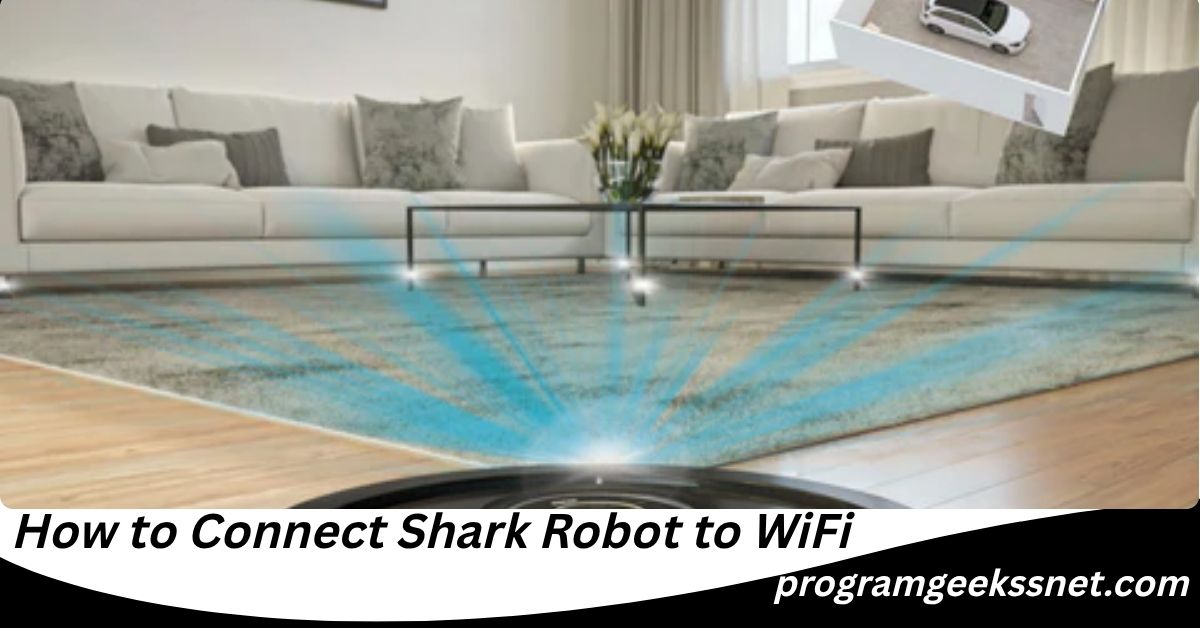
How to Connect Shark Robot to WiFi: Complete Step-by-Step Guide for Easy Setup in 2026
If you recently bought a Shark robot vacuum, one of the first things you need to do is connect it to your home WiFi network. A successful connection allows you to control your robot from your phone, schedule cleaning sessions, receive notifications, and use voice commands with smart home assistants.
Many users search for how to connect shark robot to wifi because the setup process can sometimes be confusing, especially when changing internet providers, upgrading routers, or connecting a new Shark robot for the first time.
This comprehensive guide explains everything you need to know about how to connect shark robot to wifi, including setup instructions, troubleshooting solutions, reconnecting to a new network, and expert tips to ensure a smooth connection.
Whether you own a Shark AI Robot, Shark Matrix, Shark Detect Pro, Shark IQ Robot, or another Shark robotic vacuum model, this guide will help you get connected quickly and easily.
Why Connecting Your Shark Robot to WiFi Is Important
Before learning how to connect shark robot to wifi, it helps to understand why WiFi connectivity matters.
When your Shark robot is connected to WiFi, you can:
- Start cleaning from anywhere
- Create cleaning schedules
- Monitor cleaning progress
- Receive maintenance alerts
- Update robot software automatically
- Connect with Amazon Alexa
- Connect with Google Assistant
- Customize cleaning preferences
- Access maps and room settings on supported models
Without WiFi, your Shark robot can still perform basic cleaning functions, but many advanced features become unavailable.
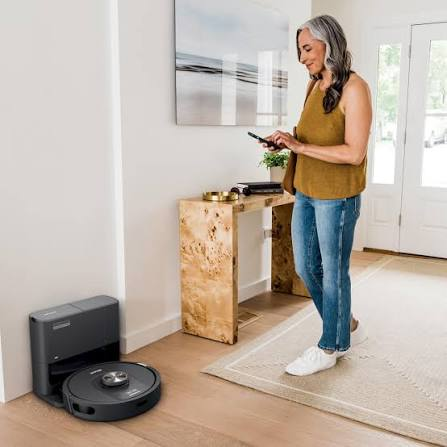
Requirements Before Connecting Shark Robot to WiFi
Before beginning the setup process, make sure you have the following:
A Compatible Shark Robot
Most modern Shark robot vacuums support WiFi connectivity, including:
- Shark AI Robot
- Shark IQ Robot
- Shark Matrix Robot
- Shark Detect Pro
- Shark EZ Robot
- Shark RV Series Models
Stable Internet Connection
Your home internet should be working properly.
2.4 GHz WiFi Network
Most Shark robot vacuums only connect to a 2.4 GHz WiFi network.
Many modern routers broadcast both 2.4 GHz and 5 GHz networks. If your robot cannot find your WiFi network, verify that the 2.4 GHz band is enabled.
Smartphone or Tablet
You will need:
- iPhone with iOS
- Android phone or tablet
SharkClean App
Download the SharkClean app from:
- Apple App Store
- Google Play Store
Charged Robot
Ensure your Shark robot has at least 50% battery before setup.
How to Connect Shark Robot to WiFi for the First Time
If this is your first setup, follow these steps carefully.
Step 1: Download the SharkClean App
Open your device’s app store.
Search for:
SharkClean
Install the application and open it.
Step 2: Create or Sign In to Your Shark Account
When the app opens:
- Select Sign Up if you’re a new user
- Enter your email address
- Create a password
- Verify your account if prompted
Existing users can simply log in.
Step 3: Place the Robot on the Charging Dock
Put the robot on its charging base.
Ensure:
- The dock is plugged in
- The robot is charging
- Indicator lights are active
A strong battery level helps avoid connection interruptions.
Step 4: Add a New Device
Inside the SharkClean app:
- Tap Add Device
- Select Robot Vacuum
- Choose your Shark model
The app will begin the setup process.
Step 5: Enable Pairing Mode
Most Shark robots enter pairing mode by holding specific buttons.
Also Read: How Much Is a Tesla Robot? Complete 2026 Price Guide, Costs, Features, and Future Value
Common method:
Press and hold the Dock and Clean buttons simultaneously for several seconds.
Wait until the WiFi light begins blinking.
A blinking light usually indicates that the robot is ready for connection.
Always follow the exact instructions displayed in your SharkClean app because button combinations may vary by model.
Step 6: Connect to the Robot Network
Your phone may temporarily connect directly to the robot.
Follow the prompts on the app.
The app will guide you through selecting your home WiFi network.
Step 7: Select Your Home WiFi Network
Choose your WiFi network from the list.
Enter your WiFi password carefully.
Double-check:
- Uppercase letters
- Lowercase letters
- Numbers
- Special characters
Incorrect passwords are one of the most common setup issues.
Step 8: Complete the Setup
The Shark robot will connect to your WiFi network.
This process usually takes 1 to 3 minutes.
Once completed:
- The WiFi light becomes solid
- The app confirms successful connection
- Your robot appears in the SharkClean dashboard
Congratulations. You have successfully completed how to connect shark robot to wifi.
How to Connect My Shark Robot to WiFi After Setup Failure
Many users ask, “How to connect my shark robot to wifi if the first attempt fails?”
Fortunately, most connection problems are easy to fix.
Try the following:
Move Closer to the Router
Weak signals often prevent successful pairing.
Place the robot within 10 to 15 feet of your router during setup.
Restart the Robot
Turn the robot off.
Wait 30 seconds.
Turn it back on.
Try the setup process again.
Restart Your Router
Power off your router.
Wait one minute.
Restart it.
Allow the internet connection to stabilize before reconnecting the robot.
Check WiFi Frequency
Verify your router is broadcasting a 2.4 GHz network.
Many Shark robots cannot connect to 5 GHz-only networks.
Update the SharkClean App
Outdated app versions may cause setup errors.
Install the latest version before trying again.
How Do I Connect My Shark Robot to WiFi After Resetting It?
If you performed a factory reset, you must reconnect the robot as if it were new.
Reset Procedure
Depending on the model:
- Hold Dock and Clean buttons
- Wait for indicator lights
- Listen for confirmation tones
After resetting:
- Open SharkClean app
- Select Add Device
- Put robot into pairing mode
- Choose WiFi network
- Enter password
- Complete setup
This process answers the common question: how do i connect my shark robot to wifi after a reset.
How to Connect Shark Robot to New WiFi
One of the most common situations occurs when homeowners:
- Change internet providers
- Buy a new router
- Rename their WiFi network
- Move to a new home
In these cases, users need to learn how to connect shark robot to new wifi.
Step 1: Open SharkClean App
Launch the SharkClean application.
Step 2: Access Device Settings
Select your robot.
Open settings.
Look for WiFi or Network Settings.
Step 3: Remove Existing Network
Depending on your model, you may need to:
- Forget network
- Reconfigure WiFi
- Reset network settings
Step 4: Enter Pairing Mode Again
Activate pairing mode.
Wait for the WiFi indicator to blink.
Step 5: Connect to New Network
Choose your new WiFi network.
Enter the password.
Wait for confirmation.
Step 6: Test Connection
Start a short cleaning session from the app.
If the robot responds correctly, the connection is working.
How to Connect Shark Robot Vacuum to WiFi on Dual-Band Routers
Many modern homes use dual-band routers.
These routers provide:
- 2.4 GHz
- 5 GHz
A common issue occurs when both networks share the same name.
Recommended Solution
Temporarily separate network names.
Example:
- HomeWiFi_24
- HomeWiFi_5
Connect the Shark robot to the 2.4 GHz network.
After setup, many users can rename the networks again without issues.
Common Reasons Shark Robot Won’t Connect to WiFi
Understanding the causes can help you solve problems faster.
Incorrect Password
Even one wrong character can stop the connection.
Weak Signal
Walls and furniture can reduce signal strength.
Router Security Settings
Some advanced security settings may block new devices.
Network Congestion
Too many connected devices can interfere with setup.
Outdated Firmware
Older robot software versions may create compatibility issues.
VPN Interference
Some VPN applications on smartphones can interrupt pairing.
Temporarily disable VPN services during setup.
Shark Robot WiFi Troubleshooting Guide
If your robot still won’t connect, use this complete troubleshooting checklist.
Verify Internet Access
Test internet on:
- Phone
- Laptop
- Tablet
If internet is down, the robot cannot connect.
Check Signal Strength
The charging dock should be located in an area with strong WiFi coverage.
Disable Mobile Data Temporarily
Some phones switch between WiFi and cellular data during setup.
Turning off mobile data can improve reliability.
Update Router Firmware
Router manufacturers frequently release updates that improve device compatibility.
Reinstall SharkClean App
Delete the app.
Restart your phone.
Install the latest version.
Try setup again.
Factory Reset the Robot
As a last resort:
- Reset robot
- Remove device from app
- Add device again
This solves many persistent issues.
Also Read: How Much Is a Litter Robot? Complete 2026 Pricing Guide, Costs, Features, and Buying Tips
Connecting Shark Robot to Amazon Alexa
After learning how to connect shark robot to wifi, many users want voice control.
Setup Process
- Open Alexa app
- Go to Skills
- Search Shark
- Enable Shark Skill
- Sign in to Shark account
- Discover devices
You can then use commands like:
- Alexa, start cleaning
- Alexa, send robot home
- Alexa, stop cleaning
Voice control adds convenience and hands-free operation.
Connecting Shark Robot to Google Assistant
Google Assistant integration is also available on many Shark robot models.
Setup Steps
- Open Google Home app
- Tap Add Device
- Select Works with Google
- Search Shark
- Sign in to Shark account
- Link your robot
After setup, you can use voice commands to control cleaning tasks.
Best WiFi Practices for Shark Robot Owners
To maintain a reliable connection, follow these recommendations.
Place Router Centrally
A centrally located router provides better coverage.
Avoid Signal Obstacles
Large furniture and thick walls can reduce signal strength.
Keep Firmware Updated
Updates improve performance and security.
Use Strong Passwords
Protect your smart devices with secure passwords.
Restart Devices Occasionally
Periodic restarts help maintain stable connections.
Expert Tips for Faster Shark Robot Setup
Through years of smart-home device testing, several practices consistently improve setup success.
Complete Setup Near the Router
Initial pairing works best with a strong signal.
Disable Smart Network Switching
Some smartphones automatically switch networks.
Turn this feature off during setup.
Use the Latest App Version
Many connection issues disappear after updating the app.
Avoid Guest Networks
Guest networks may limit communication between devices.
Use your primary home network whenever possible.
Verify Location Permissions
Some phones require location services to detect WiFi devices during setup.
Grant permissions when requested.
What Happens After Connecting Shark Robot to WiFi?
Once connected, your Shark robot becomes significantly more useful.
You can:
- Schedule daily cleaning
- Receive maintenance reminders
- Monitor battery status
- View cleaning history
- Customize cleaning routines
- Access room mapping features
- Receive software updates automatically
These features improve convenience and maximize the value of your robot vacuum.
Security Considerations When Connecting Smart Home Devices
Many consumers overlook smart-home security.
Also Read: How Many Seasons Mr Robot? Complete Guide to the Award-Winning TV Series
When connecting your Shark robot:
- Use WPA2 or WPA3 security
- Avoid public WiFi networks
- Change default router passwords
- Keep software updated
- Review account activity periodically
These practices help protect your home network.
Frequently Asked Questions
Can I use my Shark robot without WiFi?
Yes. Most Shark robot vacuums can perform basic cleaning without WiFi. However, advanced features such as scheduling, app controls, notifications, and voice assistant integration require an internet connection.
Why does my Shark robot keep disconnecting from WiFi?
Common causes include weak signals, router updates, network congestion, outdated firmware, and router placement issues. Improving WiFi coverage often resolves the problem.
Can Shark robots connect to 5 GHz WiFi?
Most Shark robot vacuums support only 2.4 GHz WiFi networks. Check your model specifications for confirmation.
How long does Shark robot WiFi setup take?
Most setups take between 3 and 10 minutes when all requirements are met.
Do I need the SharkClean app?
Yes. The SharkClean app is required for initial WiFi setup and access to smart features.
Will changing my WiFi password disconnect my Shark robot?
Yes. If your WiFi password changes, the robot will lose access and must be reconnected using the updated credentials.
Can multiple family members control the same Shark robot?
Yes. Multiple users can often access the same Shark account and control the robot through their devices.
Does WiFi improve cleaning performance?
WiFi itself does not improve cleaning power, but it enables software updates that may enhance navigation, mapping, and overall performance.
Can I connect my Shark robot to a mesh WiFi system?
Yes. Most modern mesh WiFi systems work well with Shark robots as long as a compatible 2.4 GHz network is available.
What should I do if my Shark robot shows offline in the app?
Restart the robot, restart the router, verify internet access, and ensure the robot is within WiFi range. If necessary, reconnect the robot to the network.
Final Thoughts
Understanding how to connect shark robot to wifi is essential for unlocking all the smart features your robot vacuum offers. Whether you are learning how to connect my shark robot to wifi for the first time, figuring out how do i connect my shark robot to wifi after a reset, or discovering how to connect shark robot to new wifi after changing routers, the process is usually straightforward when you follow the correct steps.
The key factors for success are using a stable 2.4 GHz network, keeping the SharkClean app updated, placing the robot near the router during setup, and ensuring the correct WiFi password is entered. If connection issues occur, most can be solved through simple troubleshooting techniques such as restarting devices, updating firmware, or reconnecting the robot.
By following the guidance in this article, you can successfully complete how to connect shark robot vacuum to wifi and enjoy convenient app controls, scheduling features, voice assistant integration, software updates, and a smarter cleaning experience throughout your home.
editor's pick
latest video

news via inbox
Nulla turp dis cursus. Integer liberos euismod pretium faucibua